Recording Blended Content – Screencast Videos
What is Screencasting?
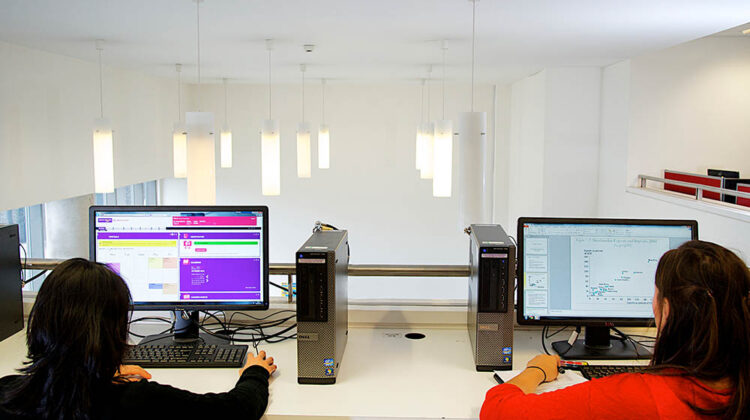
A screencast is a video recording of your computer screen and usually includes audio narration.
Screencasts are just one of many different types of educational videos you can share with your learners.
Screen capture or screencasting tools allow you to:
- Capture your screen and record an audio narration (e.g. audio over powerpoint, audio over specialist software)
- Record an inset video of yourself on top of your screen recording. Students like to see who is delivering the lecture but a full screen video of a talking head is not recommended.
- Use drawing tools to annotate your slides or documents.
Screencasting tools – Camtasia
Camtasia is a screen recording and editing tool that will help you produce professional looking videos on Windows and Mac. There is a full site license for all academic staff at the University to use Camtasia, which you can request here. It is simple to use with features that allow you to produce good quality blended learning material, including being integrated with PowerPoint.
Details on how to get started with Camtasia can be found here.
Editing screencast video
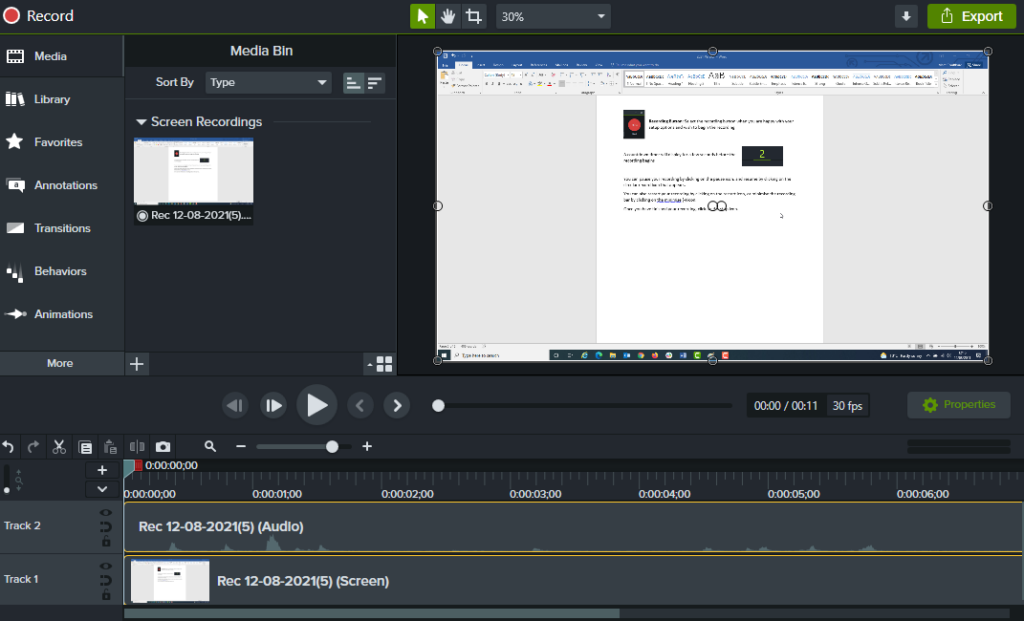
The video editing tools in Camtasia will allow you edit your video to enhance your learning material.
Core video editing tools
- Multi-Track Timeline: Separate tracks for video, screen recordings, camera feeds, and audio allow you to slice, trim, split, and rearrange clips independently.
- Transitions & Behaviors: Over 150 drag-and-drop transitions (fades, wipes, 3D effects, and blurs) and text behaviors to animate titles or still images.
- Annotations & Callouts: Shapes, arrows, blur regions, spotlights, pixelation, and sketch-motion elements to direct viewer attention.
- Cursor Effects: Tools to change cursor colour, add mouse highlights, scale the cursor, or trace smooth custom motion paths.
- Zoom-and-Pan: Manual keyframes to highlight active areas of a screen recording.
Uploading screencast video to Canvas Studio
It is possible to upload your video directly to Canvas Studio.
Further information can be found here.
Embedding screencast video into Canvas Studio
Once you have created your blended learning content and uploaded it to Canvas Studio, it is possible to embed the video into the Canvas page.
Further information can be found here.